> For the complete documentation index, see [llms.txt](https://interfacing.gitbook.io/interfacing-help-files/llms.txt). Markdown versions of documentation pages are available by appending `.md` to page URLs; this page is available as [Markdown](https://interfacing.gitbook.io/interfacing-help-files/interfacing-help-files-fr/administration-and-configuration/configuring-application-settings/contractor-application-settings/assessment-management.md).

# Assessment Management

Define assessment categories, questionnaires, and templates for contractor evaluations.

## Overview

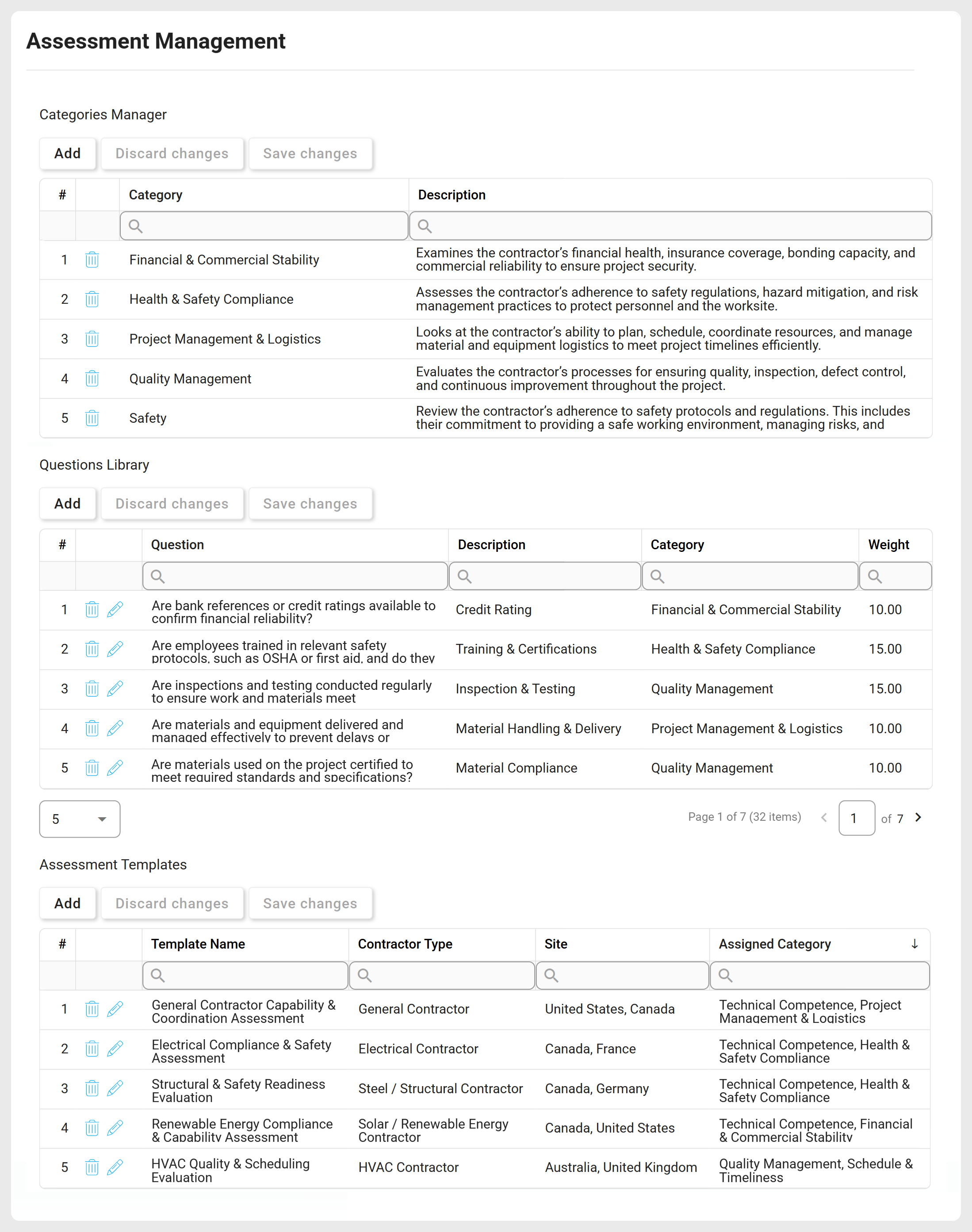
The **Assessment Management** module is used to configure the criteria for evaluating contractors. It allows you to define and manage the following:

* **Assessment Categories**
  * Create and maintain categories representing key areas of evaluation.
* **Assessment Questions**
  * Create and maintain questions used to collect specific information within each category.
* **Assessment Templates**
  * Create and maintain templates that organize categories and questions into questionnaires.

<figure><img src="https://content.gitbook.com/content/AgpNu7XmgN3Z9B8kIShD/blobs/ChldQty6Av6wlJVa9soH/CON-V16-Settings-Assessment.png" alt=""><figcaption></figcaption></figure>

***

## How Settings Are Applied

Assessment templates defined in this module combine categories and questions to create a questionnaire. When conditions are met, the questionnaire is incorporated into the **Contractor Management** workflow, with relevant sections revealed as the workflow progresses.

{% hint style="warning" %}
The questionnaire is displayed only when the **Contractor Type** and **Country of Incorporation** selected in the [New Contractor](/interfacing-help-files/interfacing-help-files-fr/supplier-and-product-management/contractor-application/navigating-the-contractor-management-workflow/create-new-contractor-request.md) form match those specified in the template.
{% endhint %}

***

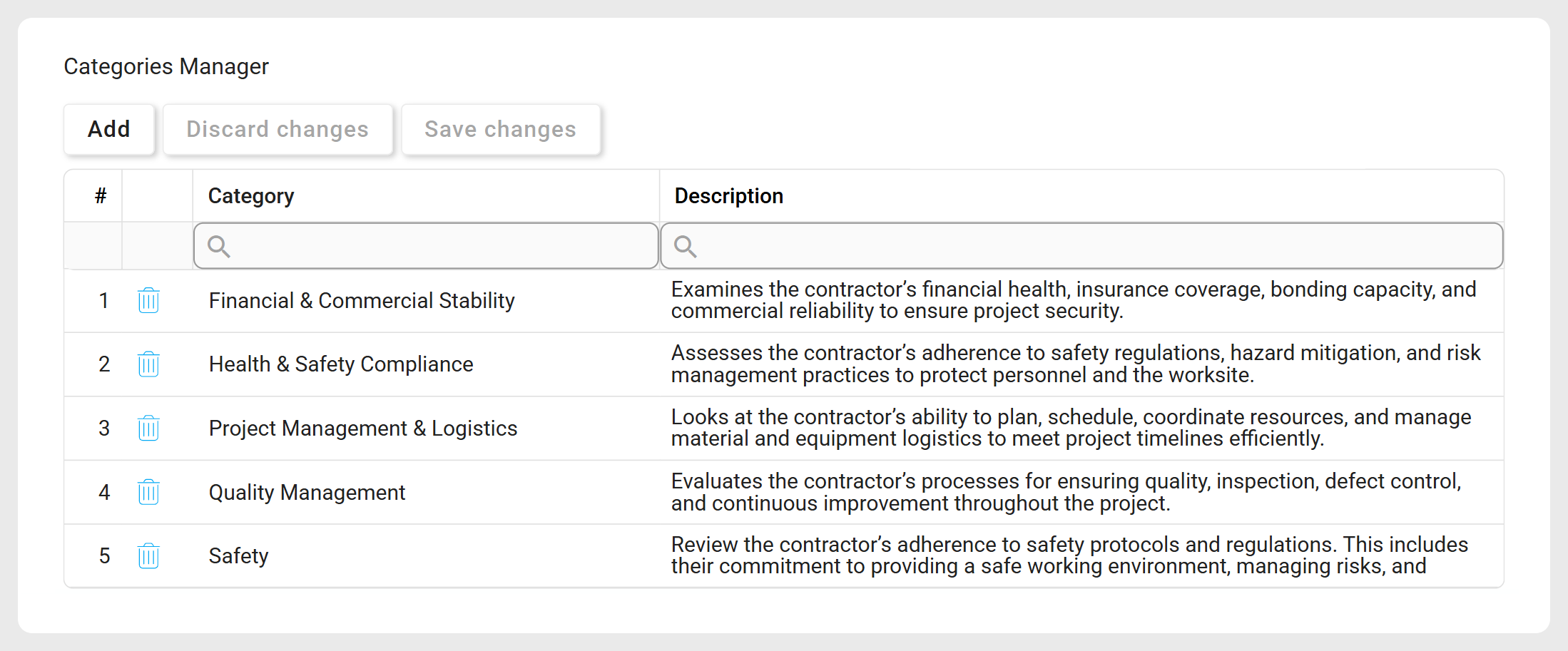
## Configuring Assessment Categories

Use this section to create and manage assessment categories:

<figure><img src="https://content.gitbook.com/content/AgpNu7XmgN3Z9B8kIShD/blobs/C1AJg6xeHQI2sTlha7wX/CON-V16-Settings-Assessment-1.png" alt=""><figcaption></figcaption></figure>

{% stepper %}
{% step %}

### Defining Assessment Categories

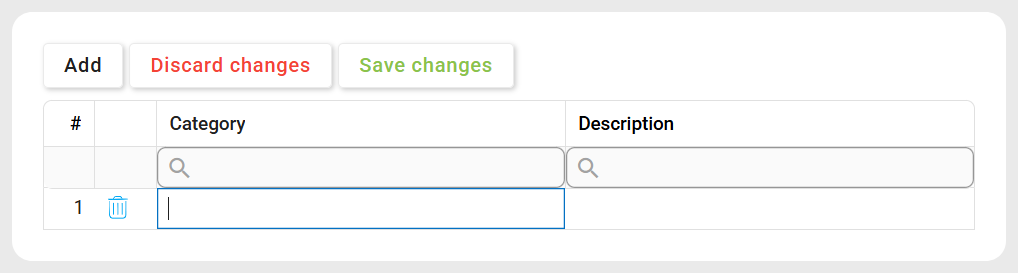
Click **Add** to create a new category. A new row will appear in the grid.

<figure><img src="https://content.gitbook.com/content/AgpNu7XmgN3Z9B8kIShD/blobs/BlGNoLSqlJlofmtvqsoE/CON-V16-Settings-Assessment-1-1.png" alt=""><figcaption></figcaption></figure>

* **Category**: Enter a descriptive name or title for the category.
* **Description**: Provide a brief description of category's purpose or scope.

***

{% endstep %}

{% step %}

### Managing Assessment Categories

Once a category is defined, the following actions are available:

* **Edit**: Click directly in a grid cell to modify its contents.
* **Delete** ( <i class="fa-trash-can">:trash-can:</i> ): Click to remove a category.

{% hint style="info" %}
Confirm deletion by clicking **Save Changes** or clicking outside the grid. To cancel, click **Discard Changes** or **Undo** ( <i class="fa-arrow-rotate-left">:arrow-rotate-left:</i> ).
{% endhint %}

***

{% endstep %}

{% step %}

### Saving & Discarding Changes

After making changes, choose one of the following:

* [**Save Changes**](#user-content-fn-1)[^1]**:** Click to apply modifications.
* **Discard Changes:** Click to revert any unsaved modifications.

***

{% endstep %}
{% endstepper %}

***

## Configuring Assessment Questions

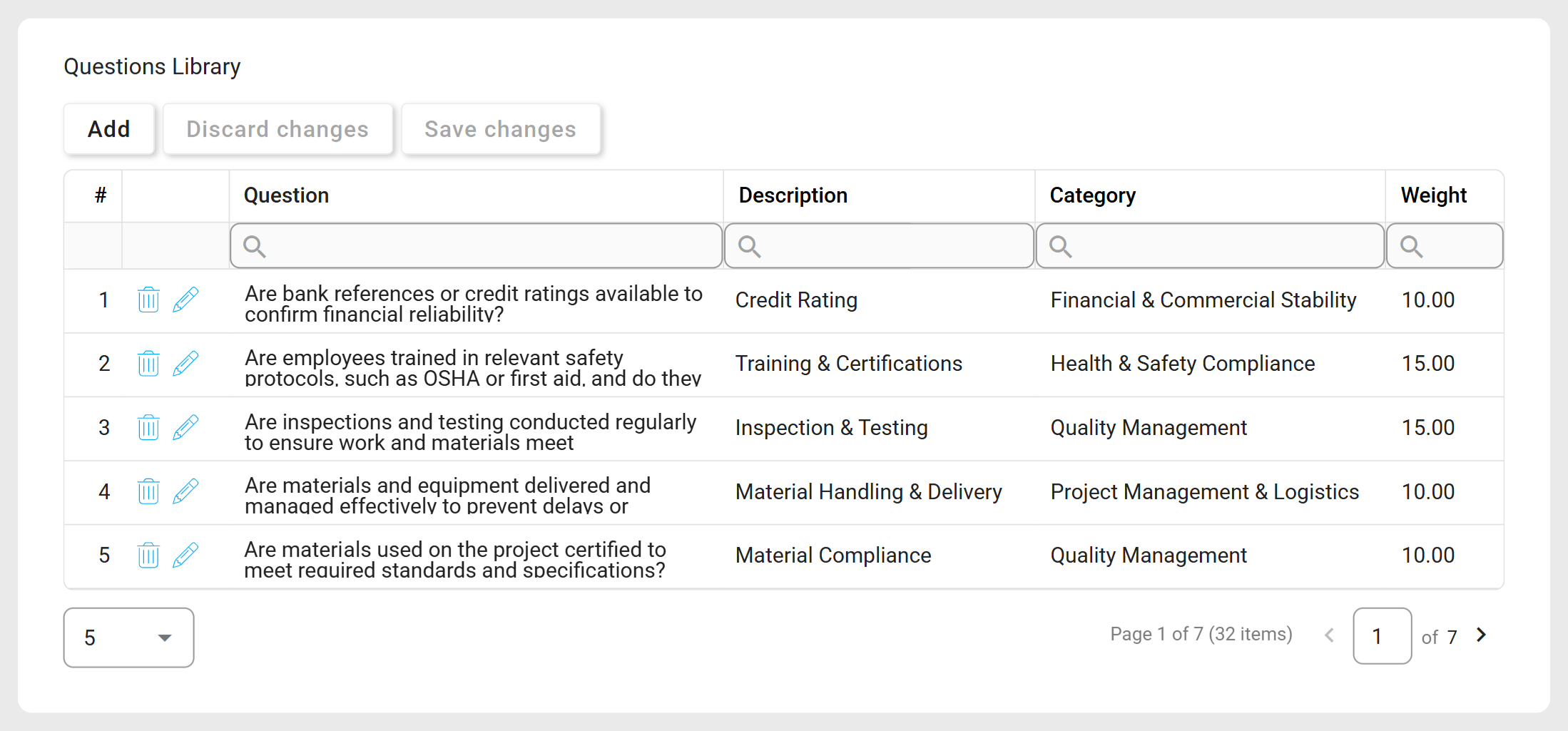
Use this section to create and manage assessment questions:

<figure><img src="https://content.gitbook.com/content/AgpNu7XmgN3Z9B8kIShD/blobs/udQ9fnQ1RqV5a2hGzGgs/CON-V16-Settings-Assessment-2.png" alt=""><figcaption></figcaption></figure>

{% stepper %}
{% step %}

### Defining Assessment Questions

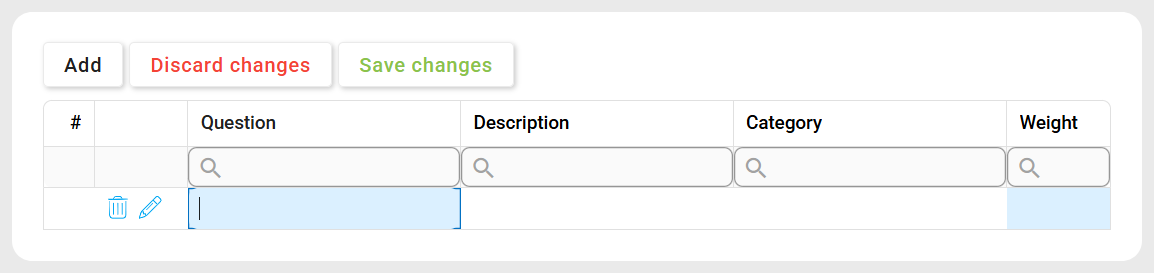
Click **Add** to create a new question. A new row will appear in the grid.

<figure><img src="https://content.gitbook.com/content/AgpNu7XmgN3Z9B8kIShD/blobs/VwU4XBcCkjbmG2qYVVfK/CON-V16-Settings-Assessment-2-1.png" alt=""><figcaption></figcaption></figure>

{% hint style="danger" %}
Ensure all required fields (highlighted in <mark style="background-color:yellow;">**yellow**</mark>) are completed before saving.
{% endhint %}

* <mark style="background-color:yellow;">**Question**</mark><mark style="background-color:yellow;">:</mark> Enter the text of the question to be asked in the assessment.
* **Description**: Provide additional context or clarification about the question.
* **Category**: Select the appropriate assessment category.
* <mark style="background-color:yellow;">**Weight**</mark><mark style="background-color:yellow;">:</mark> Enter a numeric value to define the question’s significance in scoring.

***

{% endstep %}

{% step %}

### Managing Assessment Questions

Once a question is defined, the following actions are available:

* **Edit:** Modify an existing category either **inline** or using a **modal form**.

  * **Inline Editing:** Click directly in a grid cell to modify its contents.
  * **Modal Editing:** Click the **Edit** ( <i class="fa-pencil">:pencil:</i> ) icon or double-click the entry to open the editing form.

  <div data-gb-custom-block data-tag="hint" data-style="info" class="hint hint-info"><p>This form allows assignment to <strong>multiple categories</strong> (not available when adding a new question).</p></div>
* **Delete** ( <i class="fa-trash-can">:trash-can:</i> ): Click to remove a question.

{% hint style="info" %}
Confirm deletion by clicking **Save Changes** or clicking outside the grid. To cancel, click **Discard Changes** or **Undo** ( <i class="fa-arrow-rotate-left">:arrow-rotate-left:</i> ).
{% endhint %}

***

{% endstep %}

{% step %}

### Saving & Discarding Changes

After making changes, choose one of the following:

* [**Save Changes**](#user-content-fn-1)[^1]**:** Click to apply modifications.
* **Discard Changes:** Click to revert any unsaved modifications.

***

{% endstep %}
{% endstepper %}

***

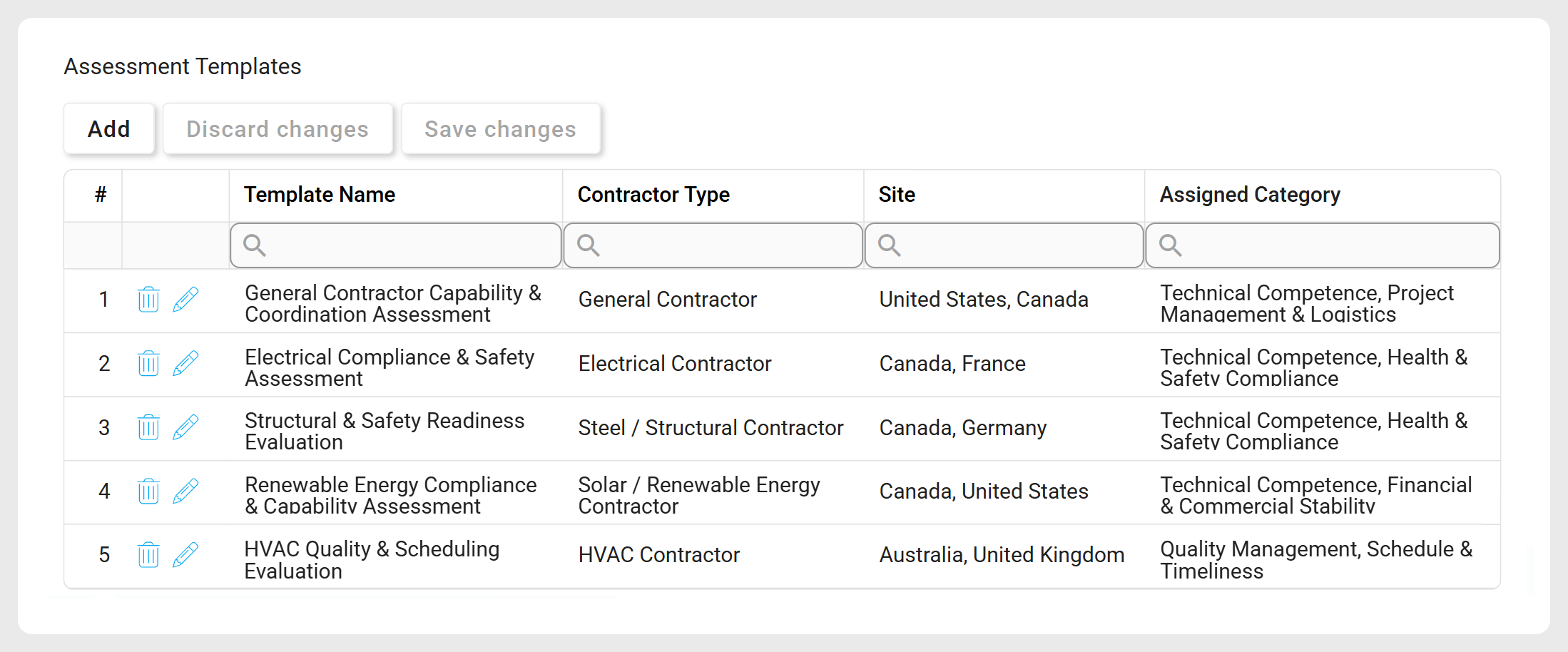
## Configuring Assessment Templates

Use this section to create and manage assessment templates:

<figure><img src="https://content.gitbook.com/content/AgpNu7XmgN3Z9B8kIShD/blobs/4XBHDS2c8v5m8fTKEDF2/CON-V16-Settings-Assessment-3.png" alt=""><figcaption></figcaption></figure>

{% stepper %}
{% step %}

### Defining Assessment Templates

Click **Add** to create a new template.

<details>

<summary><mark style="color:blue;"><strong>Create Assessment Template</strong></mark></summary>

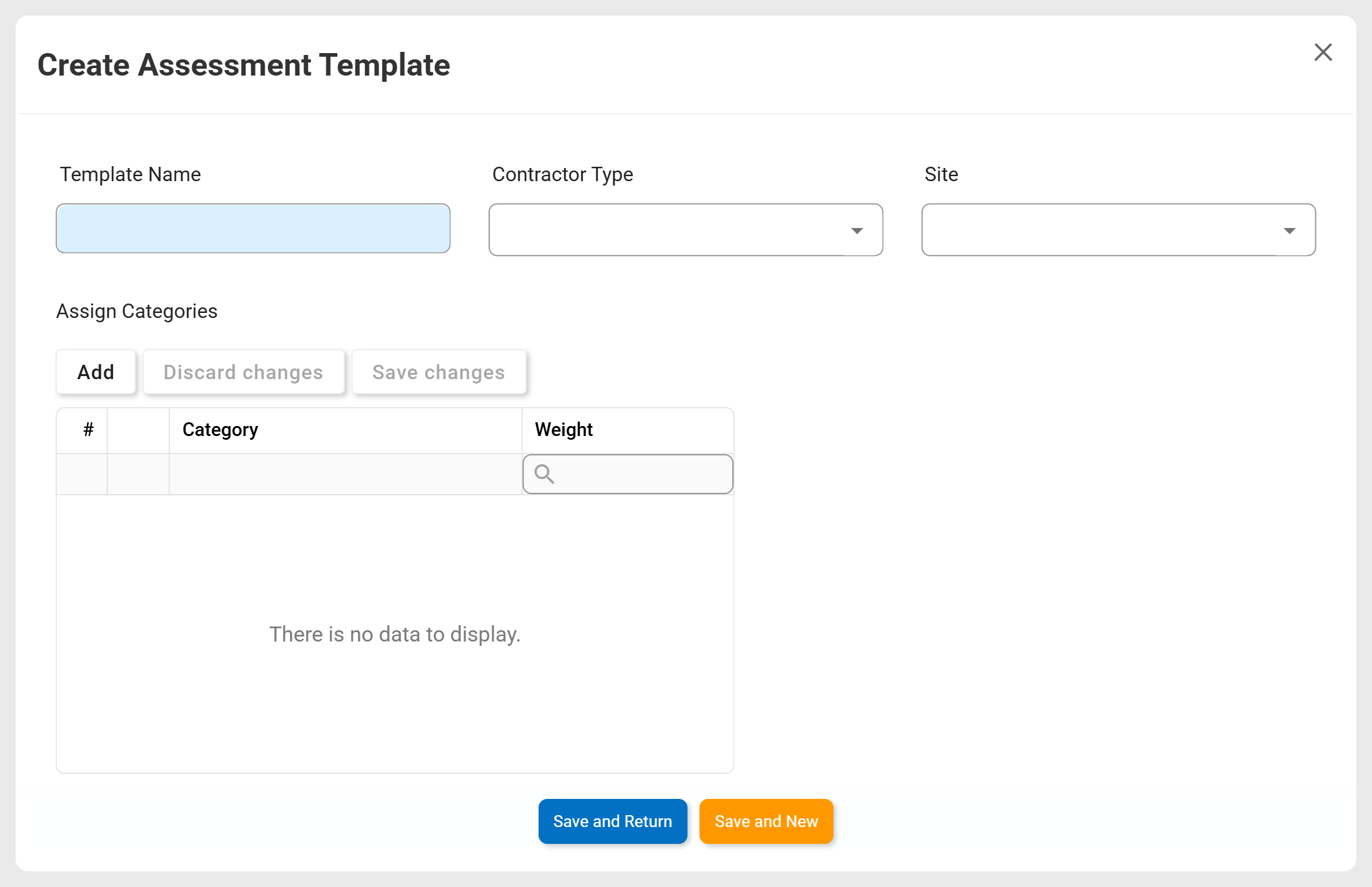
The **Create Assessment Template** form allows you to configure a new assessment template.

<figure><img src="https://content.gitbook.com/content/AgpNu7XmgN3Z9B8kIShD/blobs/uMdCYuBfzOQFiv5xYeLY/CON-V16-Settings-Assessment-3-1.png" alt=""><figcaption></figcaption></figure>

{% hint style="danger" %}
Ensure all required fields (highlighted in <mark style="background-color:yellow;">**yellow**</mark>) are completed before saving.
{% endhint %}

1. **Define Details**

Complete the relevant fields to configure the assessment template.

* <mark style="background-color:yellow;">**Template Name**</mark><mark style="background-color:yellow;">:</mark> Enter a descriptive name for the template.
* **Contractor Type**: Select the contractor type the assessment applies to.
* **Site**: Select the site the assessment applies to.

{% hint style="warning" %}

#### Important

* The assessment questionnaire will appear in **Contractor Management** tasks only if the same **Contractor Type** and **Site** combination is selected in the [New Contractor](/interfacing-help-files/interfacing-help-files-fr/supplier-and-product-management/contractor-application/navigating-the-contractor-management-workflow/create-new-contractor-request.md) form.
* A template cannot be created if another template already exists with the same **Contractor Type** and **Site** combination.
  {% endhint %}

***

2. **Assign Categories & Weights**

Click **Add** to assign a category to the assessment template. A new row will appear in the grid.

* **Category**: Select the relevant category.
* **Weight**: Enter a numeric value to define the category's significance in scoring.

{% hint style="warning" %}
The total weight across all categories must equal **100%**.
{% endhint %}

***

3. **Save Changes**

When ready to save, choose one of the following options:

* **Save and Return:** Click to save the change type and return to the main form.
* **Save and New:** Click to save the change type and open a new form to create another.

</details>

***

{% endstep %}

{% step %}

### Managing Assessment Templates

Once a template is defined, the following actions are available:

* [**Edit**](#user-content-fn-2)[^2] ( <i class="fa-pencil">:pencil:</i> ): Click to modify a template.
* **Delete** ( <i class="fa-trash-can">:trash-can:</i> ): Click to remove a template.

{% hint style="info" %}
Confirm deletion by clicking **Save Changes** or clicking outside the grid. To cancel, click **Discard Changes** or **Undo** ( <i class="fa-arrow-rotate-left">:arrow-rotate-left:</i> ).
{% endhint %}

***

{% endstep %}
{% endstepper %}

***

## See Also

<table data-view="cards"><thead><tr><th></th><th></th><th data-hidden data-card-cover data-type="image">Cover image</th></tr></thead><tbody><tr><td><strong>How to Export, Import, or Generate Templates</strong></td><td>Export data, import files, or generate templates from the grid menu, as applicable.</td><td><a href="https://content.gitbook.com/content/AgpNu7XmgN3Z9B8kIShD/blobs/DgIV8TTUnx89pGvjClF5/IMS-V16-NAV-Library-Icons-106.png">IMS-V16-NAV-Library-Icons-106.png</a></td></tr></tbody></table>

[^1]: You can also **click outside the grid** to save your changes instantly.

[^2]: You can also **double-click** the row to edit quickly.


---

# Agent Instructions
This documentation is published with GitBook. GitBook is the documentation platform designed so that both humans and AI agents can read, navigate, and reason over technical content effectively. Learn more at gitbook.com.

## Querying This Documentation
If you need additional information that is not directly available in this page, you can query the documentation dynamically by asking a question.

Perform an HTTP GET request on the current page URL with the `ask` query parameter, and the optional `goal` query parameter:

```
GET https://interfacing.gitbook.io/interfacing-help-files/interfacing-help-files-fr/administration-and-configuration/configuring-application-settings/contractor-application-settings/assessment-management.md?ask=<question>&goal=<endgoal>
```

`ask` is the immediate question: it should be specific, self-contained, and written in natural language.
`goal` is optional and describes the broader end goal you are ultimately trying to accomplish on behalf of the user. GitBook uses it to tailor the answer towards what is most useful for that goal.

The response will contain a direct answer to the question and relevant excerpts and sources from the documentation.

Use this mechanism when the answer is not explicitly present in the current page, you need clarification or additional context, or you want to retrieve related documentation sections.