> For the complete documentation index, see [llms.txt](https://interfacing.gitbook.io/interfacing-help-files/llms.txt). Markdown versions of documentation pages are available by appending `.md` to page URLs; this page is available as [Markdown](https://interfacing.gitbook.io/interfacing-help-files/quality-managers/complaint-application/tracking-and-monitoring-complaints/complaint-dashboard.md).

# Complaint Dashboard

View complaint trends, status, and action performance with interactive charts and metrics.

Use the **Complaint Dashboard** to track and analyze complaints. With it, you can:

* Monitor complaint action item progress
* Identify overdue or at-risk actions
* Review completion trends and workload distribution

***

## Using the Dashboard

Follow the steps below to explore, analyze, and act on data.

{% stepper %}
{% step %}

### Viewing Dashboard Metrics

The dashboard displays several charts, each offering a different perspective on incident management performance and action item execution.

<table data-card-size="large" data-view="cards"><thead><tr><th align="center"></th><th>What It Shows</th><th>Use It To</th></tr></thead><tbody><tr><td align="center"><strong>No. of Incident Action Items On Time vs. Past Due</strong></td><td>The number of action items completed on time compared to those that are past due.</td><td>Monitor compliance with deadlines and identify items requiring follow-up.</td></tr><tr><td align="center"><strong>No. of Incident Action Items Per Status</strong></td><td>The number of action items in each status (e.g., Started, In Progress, Completed).</td><td>Track workflow progress and identify bottlenecks in incident resolution.</td></tr><tr><td align="center"><strong>No. of Completed Incident Action Items - Grouped by Due Date</strong></td><td>The number of action items completed, grouped according to their original due dates.</td><td>Track completion trends and evaluate adherence to established deadlines.</td></tr></tbody></table>

***

{% endstep %}

{% step %}

### Filtering Metrics

Use filters to refine the data displayed in the dashboard:

* **Due Date – From / Due Date – To** — Restrict results to complaint action items that fall within the selected date range.

After selecting your criteria, click **Apply** to refresh the charts.

***

{% endstep %}

{% step %}

### Interacting with Charts

Interact with charts to explore details and uncover specific data:

* **Hover** over data points (e.g., bars or pie slices) to view tooltips showing the category and item count.
* **Double-click** a data point to drill down from a summary view into a detailed list.
  * **Example:** Double-click the **Deadline Passed** slice in the **On Time vs. Past Due** chart to view all related items in a form.

***

{% endstep %}

{% step %}

### Exporting or Downloading Charts

Export charts for reporting or offline use.

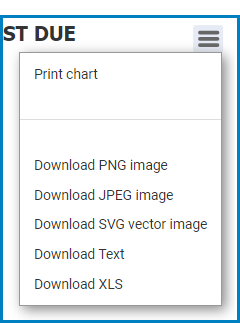
* Select the **hamburger menu** ( <i class="fa-bars">:bars:</i> ) in the top-right corner of the chart.
* Choose an export format:
  * PNG image
  * JPEG image
  * SVG vector image
  * Text file
  * XLS file

<figure><img src="https://manula.r.sizr.io/large/user/10696/img/audit-dashboard-3_v2.png" alt="" width="188"><figcaption></figcaption></figure>

***

{% endstep %}
{% endstepper %}

***


---

# Agent Instructions
This documentation is published with GitBook. GitBook is the documentation platform designed so that both humans and AI agents can read, navigate, and reason over technical content effectively. Learn more at gitbook.com.

## Querying This Documentation
If you need additional information that is not directly available in this page, you can query the documentation dynamically by asking a question.

Perform an HTTP GET request on the current page URL with the `ask` query parameter, and the optional `goal` query parameter:

```
GET https://interfacing.gitbook.io/interfacing-help-files/quality-managers/complaint-application/tracking-and-monitoring-complaints/complaint-dashboard.md?ask=<question>&goal=<endgoal>
```

`ask` is the immediate question: it should be specific, self-contained, and written in natural language.
`goal` is optional and describes the broader end goal you are ultimately trying to accomplish on behalf of the user. GitBook uses it to tailor the answer towards what is most useful for that goal.

The response will contain a direct answer to the question and relevant excerpts and sources from the documentation.

Use this mechanism when the answer is not explicitly present in the current page, you need clarification or additional context, or you want to retrieve related documentation sections.